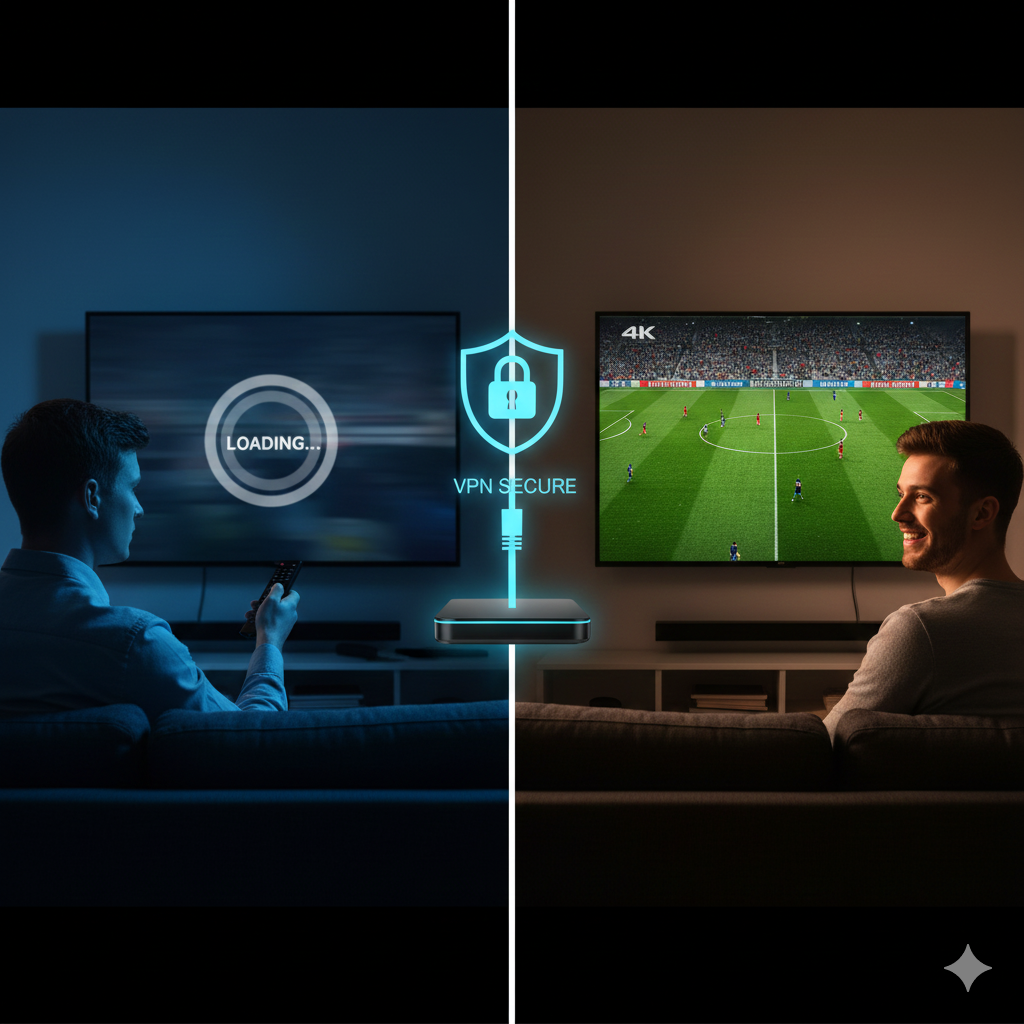
There is nothing more frustrating than settled down for a massive Champions League night or the latest season of a hit series, only for the dreaded “spinning circle” to appear. In 2026, with the high-speed fiber networks available across Ireland, buffering shouldn’t be a regular occurrence. If you are experiencing interruptions, it is rarely a “slow internet” problem—it is usually a configuration, hardware, or ISP-related issue.
In this comprehensive 1,500-word guide, we will walk you through every possible reason for buffering and provide the exact technical steps to fix it, ensuring you get the most out of your Premium IPTV Ireland subscription.
1. The “Speed” Myth: How Much Do You Actually Need?
Many users believe they need 500Mbps to stream 4K. This is a common misconception. In reality, a stable 4K UHD stream only requires about 25Mbps of consistent bandwidth.
-
The Problem: Your “Headline Speed” (what your ISP promises) is not the same as your “Stable Speed.”
-
The Fix: Before troubleshooting, go to a neutral site to check your connection speed. If you are getting 50Mbps+ but still buffering, the issue is not your raw speed—it is “latency” or “throttling.”
2. ISP Throttling: The Silent Irish Streaming Killer
In 2026, Irish Internet Service Providers (ISPs) like Eir, Sky, and Vodafone use highly advanced AI-driven “Deep Packet Inspection” (DPI). This allows them to see when a household is pulling a massive amount of data from a streaming server. During high-traffic events, they may “throttle” (slow down) those specific data packets to protect their network.
How to Bypass ISP Throttling:
The most effective way to stop this is by using a Premium VPN. A VPN encrypts your traffic, making it impossible for your ISP to see what you are doing. To them, it just looks like regular encrypted web traffic, so they don’t apply the “streaming brake.”
3. Wi-Fi vs. Ethernet: The Battle for Stability
We cannot stress this enough: Wi-Fi is for phones; Ethernet is for streaming. Even if your router is in the same room, Wi-Fi is prone to “interference” from other devices, microwaves, and even your neighbor’s router signal.
-
The Symptom: Your stream works perfectly for 10 minutes, then buffers for 5 seconds, then works again. This is a classic sign of Wi-Fi interference.
-
The Solution: Use a physical Cat6 Ethernet cable to connect your Firestick (via an OTG adapter) or Android Box directly to your router. If running a cable is impossible, consider Powerline Adapters, which send the internet signal through your home’s electrical wiring.
4. Hardware Limitations: Is Your Device Overloaded?
Many buffering issues are actually “Hardware Lag.” If you are using an older 1st Gen Firestick or a cheap “unbranded” Android box, the processor may be struggling to decode modern 4K H.265 video codecs.
-
Memory Management: Apps like TiviMate and Smarters require RAM to “buffer ahead.” If your device’s storage is 95% full, there is no “room” for the app to store the upcoming minutes of the video, causing it to stop and wait.
-
The Fix: Regularly clear the Cache of your IPTV app and delete any unused apps from your device. Aim to keep at least 1GB of free space at all times.
5. Software Optimization: Settings You Must Change
Sometimes, the app settings themselves are the cause of the problem. Inside your player settings, look for the following:
-
Buffer Size: Change this from “Small” or “None” to “Large” or “5 Seconds.” This tells the app to download more video in advance.
-
Hardware Decoder: Ensure “Hardware Acceleration” is turned ON. This uses the device’s GPU to handle the video instead of the CPU.
-
DNS Settings: Switch your device DNS from the ISP default to Cloudflare (1.1.1.1) or Google (8.8.8.8). This often resolves “Connection Timeout” errors.
6. Server Overload vs. Local Issue
How do you know if the problem is you or the provider?
-
The Test: Check a different channel. If a “News” channel works perfectly but a “Sports” channel is buffering, the server for that specific sport might be under heavy load.
-
The Solution: Premium providers use Load Balancing to prevent this. If you are consistently seeing this on all channels, the problem is almost certainly your local setup (Router, Device, or ISP).
7. The 2026 Restart Protocol
It sounds simple, but a “Power Cycle” solves 70% of technical issues. Over time, your router’s “Routing Table” becomes cluttered, leading to micro-disconnections.
-
Turn off your Router, VPN, and Streaming Device.
-
Wait 60 seconds.
-
Turn on the Router first and wait for it to fully connect.
-
Turn on the VPN.
-
Finally, turn on your Streaming Device.
8. Why Quality Matters
Many “cheap” services found on social media are simply resellers of overloaded, low-quality servers. If the source signal is poor, no amount of troubleshooting will fix it. When you invest in a Premium IPTV Ireland plan, you are paying for high-bandwidth “Tier 1” server access that is designed to handle peak Irish traffic without breaking a sweat.
Conclusion: Take Control of Your Stream
Buffering is not a “fact of life”—it is a technical problem with a technical solution. By moving to a wired connection, using a VPN to hide from ISP throttling, and keeping your hardware clean, you can enjoy the 4K cinematic experience you are paying for.