1. Introduction: Unlocking Your Fire Stick’s Full Potential
The Amazon Fire Stick is the undisputed champion of affordable streaming devices. By setting up an IPTV subscription on your Fire Stick, you transform it from a simple video streamer into a powerful live TV, sports, and international content hub.
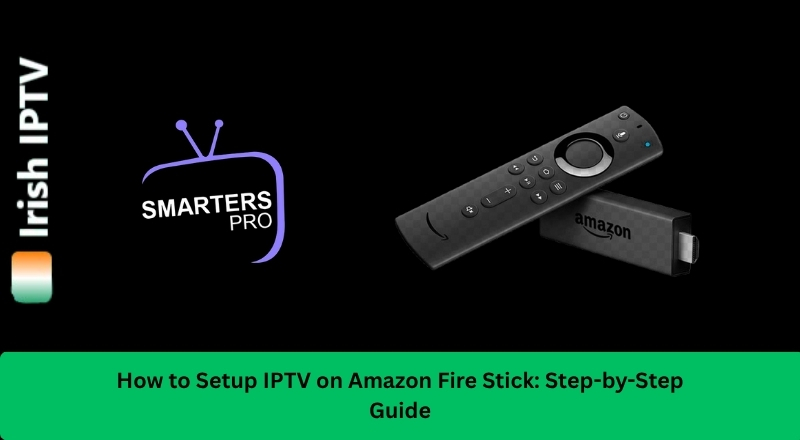
Because most of the best IPTV apps for Firestick (like TiviMate or IPTV Smarters Pro) are not in the official Amazon Appstore, you must “sideload” them. This comprehensive guide provides the complete, step-by-step tutorial for installing your service, from setting permissions to loading your channel list via M3U URL or Xtream Codes.
2. Phase 1: Preparing Your Amazon Fire Stick
Before you install any third-party app, you must allow your Fire Stick to download apps from outside the official Amazon store. This is a critical first step for any IPTV installation.
2.1. Enable Developer Options
- 1. Go to Settings: From the Fire Stick home screen, navigate to the far right and select the Settings gear icon.
- 2. Select My Fire TV: Open this menu.
- 3. Find About: Click on “About.”
- 4. Unlock Developer Options: Click on the very first listing (your Fire TV Stick model name) seven times quickly. A message will pop up saying, “No need, you are already a developer!”
- 5. Return to My Fire TV: Press the back button. Developer Options will now be visible below About.
2.2. Enable Apps from Unknown Sources
- 1. Go to Developer Options: Select the new menu item.
- 2. Turn On: Select “Apps from Unknown Sources” and change the setting to ON.
- 3. ADB Debugging: While here, we also recommend setting “ADB Debugging” to ON.
3. Phase 2: Installing the Downloader App
Since you cannot browse the internet directly to download app files (APKs) on the Fire Stick, you must install the Downloader App. This app acts as a secure, dedicated browser for sideloading.
3.1. Get the Downloader App
- 1. Go to Search: From the Fire Stick home screen, go to Find (magnifying glass icon).
- 2. Search “Downloader”: Type or speak “Downloader.”
- 3. Download: Select the orange icon and click “Download” or “Get.”
- 4. Do Not Open Yet: Once installed, click the Home button to return to the main screen.
4. Phase 3: Sideloading the IPTV Player
This is the central step where we install the actual player app that will host your channels. We will focus on two of the best IPTV apps for Firestick: IPTV Smarters Pro or TiviMate.
4.1. The Sideloading Process
- Launch Downloader: Go to Apps (the three-square icon) and open the Downloader app.
- Allow Access: Click “Allow” when prompted for storage access.
- Enter URL: In the main URL box, you need to enter the direct download link (APK) for your chosen player.
- (Note: This link changes frequently. You will need to use the current, valid APK download URL provided by your service or found through a trusted guide).
- Download: Click “Go.” The APK file will begin downloading to your Fire Stick.
- Install: Once the download completes, a prompt will appear. Click “Install.”
- Clean Up: After installation, click “Done.” When asked, click “Delete” twice to remove the installation file (APK). This frees up valuable space on your Fire Stick.
5. Phase 4: Configuring Your IPTV Subscription
The final step is linking your IPTV service credentials to the player app. Your provider will have given you either an M3U URL or Xtream Codes API details. The Xtream Codes method is often faster and better for VOD content.
5.1. Using Xtream Codes (Recommended Method)
- Launch the IPTV Player: Open the app (e.g., IPTV Smarters Pro).
- Accept Terms: Agree to the terms and conditions.
- Add User: Select “Add New User” or “Login with Xtream Codes API.”
- Enter Details: Carefully input the following details provided by your IPTV subscription provider:
- Any Name: (e.g., “My Channels”)
- Username: (Case-sensitive)
- Password: (Case-sensitive)
- Server URL/Host: (e.g.,
http://portal.myservice.com:8080)
- Connect: Click “Add User” or “Sign In.” The app will download your channels and the EPG (Electronic Program Guide).
5.2. Using M3U URL (Alternative Method)
- Add Playlist: Select the option to load a playlist via URL (or M3U file).
- Paste Link: Give the playlist a name and carefully paste the full M3U URL provided by your service.
- Load: Click “Connect.”
6. Troubleshooting and Optimization Tips
To ensure your new IPTV setup runs smoothly and reliably on your Fire Stick, apply these expert tips.
6.1. Essential Performance Fixes (H3)
- Buffering Fix: If you experience buffering, the cause is usually your internet. Use a VPN for IPTV to prevent your Internet Service Provider (ISP) from throttling your connection speed during heavy streaming.
- Clear Cache: If the app becomes sluggish, go to Fire Stick Settings > Applications > Manage Installed Applications, select your IPTV player, and click Clear Cache.
- Wired Connection: For the absolute best 4K quality streaming, consider using a USB Ethernet adapter for your Fire Stick to connect directly to your router.
6.2. Common Setup Errors
| Error | Cause | Quick Solution |
| Login Failed | Incorrect Xtream Codes login or M3U link. | Double-check capitalization and spaces in the username, password, and URL. |
| Developer Options Missing | You didn’t click the Fire TV model name seven times. | Go back to “About” and click repeatedly until the message appears. |
| Downloader Blocked | “Apps from Unknown Sources” is still OFF. | Go back to Developer Options and toggle the setting ON. |
7. Conclusion: Stream Live TV on Your Fire Stick Today
Congratulations! Your Fire Stick is now fully optimized and configured. By mastering the sideloading process and correctly inputting your IPTV subscription credentials, you have permanent access to thousands of live channels and VOD content.
You have the knowledge to bypass the restrictions of the Amazon Appstore and enjoy the full capabilities of the Best Irish IPTV Service available.
Ready to enjoy portable, high-quality streaming? Start your risk-free IPTV Trial Today!